
A Blog
digital musings.
Setting up devcontainers in VSCode
tags: setup - vscode - devcontainersStep 1 - Docker Desktop
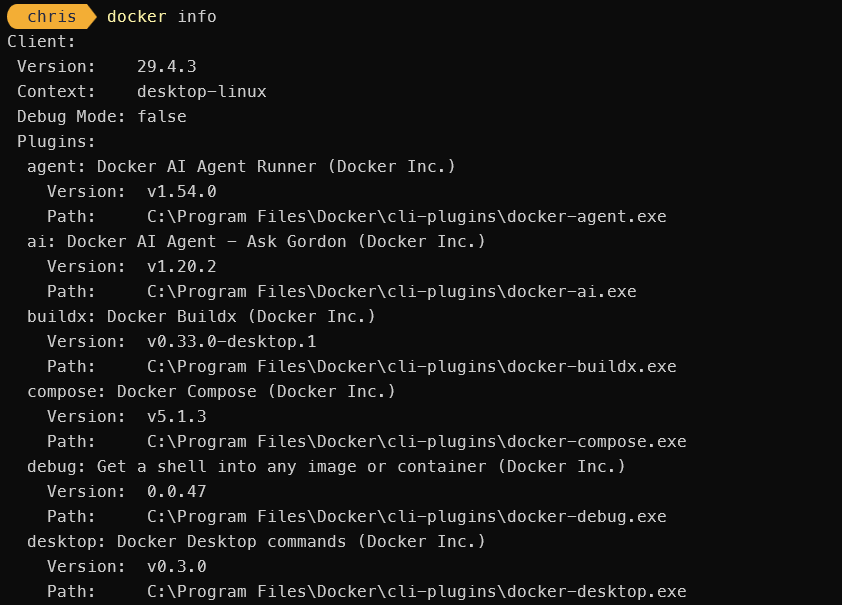
Install Docker Desktop and ensure it is running. Run docker info to verify it is installed and working.
Step 2 - Install the VSCode Extension
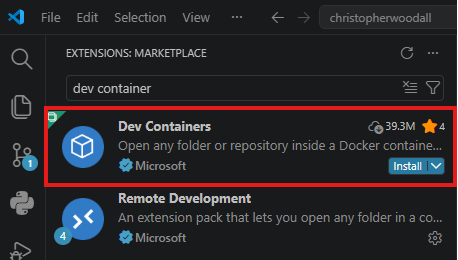
Search for “Dev Containers” in the VSCode extension marketplace. Ensure you install the version published by Microsoft.
Step 3 - Dev Container Configuration
Create a directory named .devcontainer in the root of your project. Inside this directory, create a file named devcontainer.json with the following content:
{
  "name": "My Dev Container",
  "build": {
    "dockerFile": "Dockerfile"
},
  "extensions": [
    "ms-python.python",
    "ms-toolsai.jupyter"
  ],
  "settings": {
    "python.pythonPath": "/usr/local/bin/python"
  }
}
See Dev Container metadata reference for more configuration options.
With this you can create a Dockerfile in the same directory to specify the environment you want. For example:
FROM python:3.9-slim

RUN apt-get update && apt-get install -y \
    build-essential \
    curl \
    && rm -rf /var/lib/apt/lists/*

CMD ["python3"]
# or bash, or whatever command you want to run when the container starts
You can also use a compose file if your project requires multiple services - see Create a Dev Container.
If you do not want to create a custom Dockerfile you can specify an image directly in the devcontainer.json using the image property instead of dockerFile.
Step 4 - Reopen in Container
From here you can open the command palette (Ctrl+Shift+P) and select “Dev Containers: Reopen in Container”. VSCode will then build the container based on your configuration and reopen the project inside the container.
Special Note
Treat Dev Containers as untrusted code execution
Dev Containers are powerful but you should be careful when opening projects from people you don’t fully trust. A Dev Container configuration can automatically run commands during setup and startup, which means opening a repository can execute code on your machine through Docker.
Make sure to read the devcontainer.json and any associated Dockerfiles before opening a project in a container. If you are unsure about the source of the code, it’s safer to open the project without the container or in a sandboxed environment.